

Ever wanted to know how you can make a GIF for your game’s website? gifCam is one viable solution, though I prefer ScreenToGif. Below is a GIF I recorded from my game Puzzledorf with Screen To GIF.

Now below is the same scene recorded in GifCam.

gifCam is one way I record my gif’s, as above. It’s a recorder that sits over your desktop, and it will record whatever is within it’s window space. So if you want to record an animation from your game, just sit gifCam over the top and let it roll.

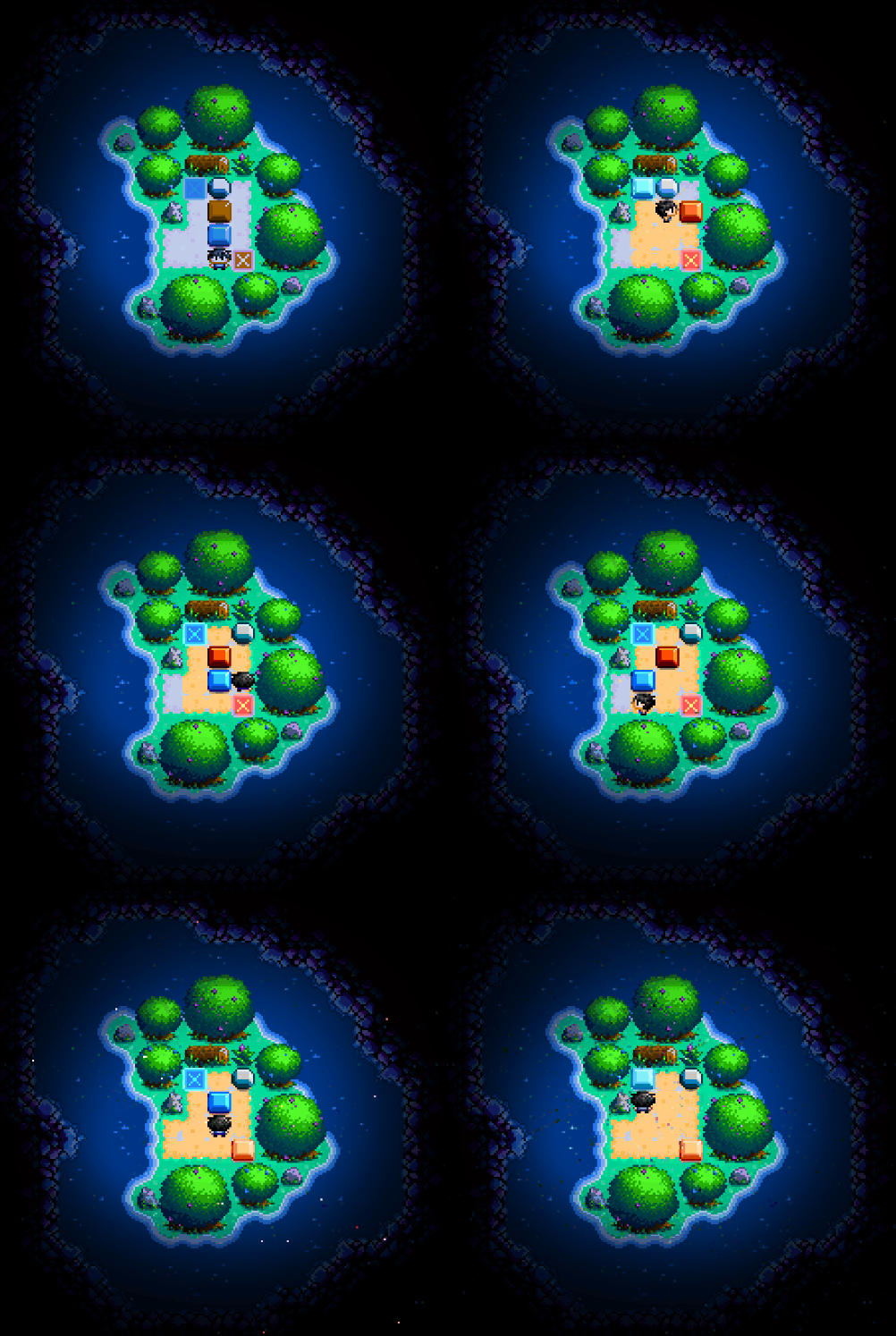
gifCam is good because it’s free, but there’s not good editing options once you’ve finished recording. ScreenToGif has much better editing options where you can edit every frame. However, occasionally gifCam produces a better quality image, depending on what you’re recording. ScreenToGif occasionally produces slightly off colours or weird artefacts, which you can see below (the ground is never supposed to be blue). Most of the time, however, it’s fine.
With gifCam, under ‘Rec’, there’s a drop down menu where you can record at 10, 16 or 33 fps. Fps just means frames per second, and basically the higher the fps the smoother the image. I record all of my gifs at 33 fps.
You can download gifCam here.
Verdict: Recommended
If you liked this article, please check out Puzzledorf to show your support. If you enjoy playing, leaving a review helps the games visibility on Steam.


 Stuart's Pixel Games
Leave a comment